Kiro AI helps you create drafts and understand your results inside Kirora. Ask it to prepare a campaign, journey, segment or signup form, answer a question using workspace data, or start a ready-made task. You review and save its work; publishing, scheduling and sending stay under human control.
Open Kiro AI
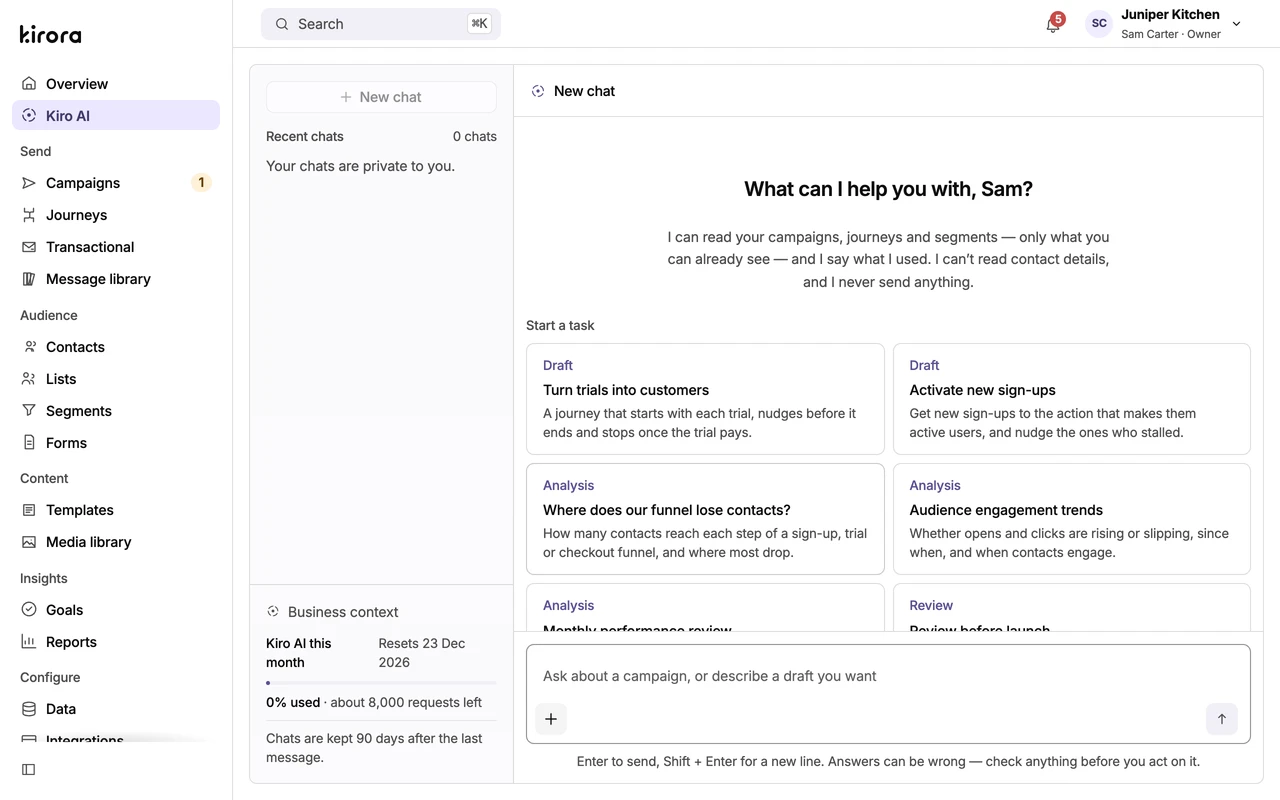
Choose Kiro AI in the main menu. Start a New chat and ask a question, pick a Draft something option, or choose a task under Start a task. Kiro AI tasks lists them. Your chats are private to you, and you can reopen them from Recent chats.
You can also open it beside the page you’re on. On the Overview, Reports, campaigns, journeys, segments, lists, contacts, templates, forms and the Message library, choose Kiro AI in the bar at the bottom of the page. On a campaign, journey or segment, the chat starts with that item attached, so you can ask about it directly, or ask Kiro AI to revise it. A revision comes back as a new draft to check and save; the saved item doesn’t change. Full page moves the chat to Kiro AI’s own page, where all your chats are kept.
Ask about your data
Kiro AI reads your campaigns, journeys, segments, lists, templates, forms, reports and goals, and answers in plain words. Try:
- “Which campaign had the most attributed conversions last month?”
- “How is my deliverability looking?”
- “What journeys are running right now?”
- “Why did clicks drop this month compared with last month?”
Every number in an answer comes from your workspace’s data, and Kiro AI shows the sources it used. Figures it works out, such as a change from last month or a click-to-open rate, are calculated by Kirora rather than by the AI, and the source shows the formula and the numbers behind it. If it can’t back a figure with your data, it leaves it out rather than guess. Answers about performance follow the same shape: what happened, compared with what (the previous period, your workspace’s average or another campaign), the likely reason, and what to do next.
Propose a goal
Kiro AI reads your goals when it plans. Ask it what to measure, such as “What goal should we set for new sign-ups?”, and it proposes a goal as a card you can save. It never saves one itself. See Let Kiro AI propose one.
Draft something
Choose one of these, then describe what you want:
- Draft a campaign: an email with its words, subject and preview text.
- Draft a push campaign
- Draft a journey: for example a three-step welcome series.
- Draft a segment: using your real attributes and events, such as “people who booked twice in 30 days”.
- Draft a signup form
For example: “A welcome email for new Juniper Kitchen supper club members, warm and short.” Each email in a campaign or journey starts from a template Kiro AI picks for it: one of your saved templates, your brand’s, or a sample from the template gallery. Kiro AI writes the email’s words into it: headings, text, buttons, subject and preview text. The layout, photos and theme stay the template’s. The draft card shows the template after Uses:; choose Change template for a different one, or change its layout and photos in the designer. To pick one yourself, after Draft a campaign or Draft a journey choose + (Add to your message) › Start from a template before you send your request.
Kiro AI checks every draft before you see it, against the same rules as the editors: the email must render, and personalisation tags must use attributes your contacts actually have. If a check fails, it fixes the draft itself, and tells you if something is still unresolved.
Kiro AI may ask a question first if the request is too vague, or show you a plan before drafting. The draft appears as a card in the chat. Open it in its editor, check it, change anything you like, and save it yourself. Nothing is saved until you do.
Write a good request
Kiro AI does its best work when a request says four things:
- What it’s for: the goal, such as welcoming new members or bringing back people who’ve gone quiet.
- Who it’s for: a list, a segment, or people who did or didn’t do something.
- When and where: the timeframe, and the channel, email or push.
- How it should read: the format, length or tone.
For example: “A welcome email for people who joined a course this week, friendly and short”, or “Members who haven’t logged in for 30 days, as a segment”. Start simple, then reply to refine the draft, as you would with a colleague. It uses the chat’s recent messages and drafts to follow up. Kiro AI proposes drafts you can edit.
Adjust something you’re working on
In the email designer or the campaign editor, choose Kiro AI to open its side panel and ask for a change to what’s open, for example “make the heading shorter and add a button to the menu”. Kiro AI makes the change straight away and says what it changed, such as Made 2 changes. Choose Undo to go back.
To change one block only, select it in the email designer and open its Kiro AI menu: Rewrite, Shorten, Make it longer, Make it friendlier, Make it more formal or Fix the grammar. Only that block changes; the rest of the email stays exactly as it was.
To translate an email, add a language under Other languages with Draft the translation with Kiro AI ticked. Kiro AI translates the design, subject and preview text, and the designer opens on its draft for you to check. See Send email in each contact’s language.
Give it your brand
Fill in Settings › Workspace › Business context so drafts sound like you: your business name, what you sell, who you serve, how you sound, approved terms and links, and claims it must never make. Kiro AI is designed not to add discounts, prices, deadlines or promo codes of its own; if a draft needs one, it asks. Review every draft before it goes live.
What Kiro AI won’t do
- It never sends, schedules, activates, publishes or deletes. A person does that. Ask it to, and it says where in Kirora to do it.
- It never changes contacts or their consent.
- It can’t read contact details such as names or email addresses.
- It acts with your access. It can only read what your role lets you see, and hidden attributes stay hidden.
- It doesn’t optimise or make decisions on its own.
Allowance and pricing
- Free: Kiro AI helps set up your workspace only. It suggests your brand profile from your verified domain and imports your brand’s look from your website, up to five times per workspace.
- Starter and Growth: a monthly Kiro AI allowance, larger on Growth. Pricing shows about how many requests each plan includes.
- Enterprise: an allowance agreed with you.
The allowance belongs to the account owner and is shared by every workspace they own. It starts again at the beginning of each month, on annual plans too, and what’s left doesn’t carry over.
See how much is left
At the foot of the Kiro AI chat list, Kiro AI this month shows how much is used and about how many requests are left, with the date it resets. The Kiro AI panels in the editors show the same in one line. Settings › Workspace › Usage lists it under Plan allowances (the bar turns amber at 75% and red at 90%), with Kiro AI by feature showing what it was used for. Admins and the owner get a notification at 75% and 90%, and when it runs out.
When it runs out
Kiro AI stops until the allowance starts again, and everything else in Kirora keeps working. If the owner prefers Kiro AI to carry on, they can tick Let Kiro AI continue from the balance under Settings › Workspace › Your plan and billing, in Payment method. Each request is then paid from your prepaid balance, at twice what the AI costs, about $0.002 for a typical request. You’re never charged for AI unless the owner turns this on.
Chats are deleted 90 days after you last used them.
Use it from other AI tools
You can also connect assistants such as Claude or Cursor to your workspace. See Connect Claude, Cursor or another AI assistant.