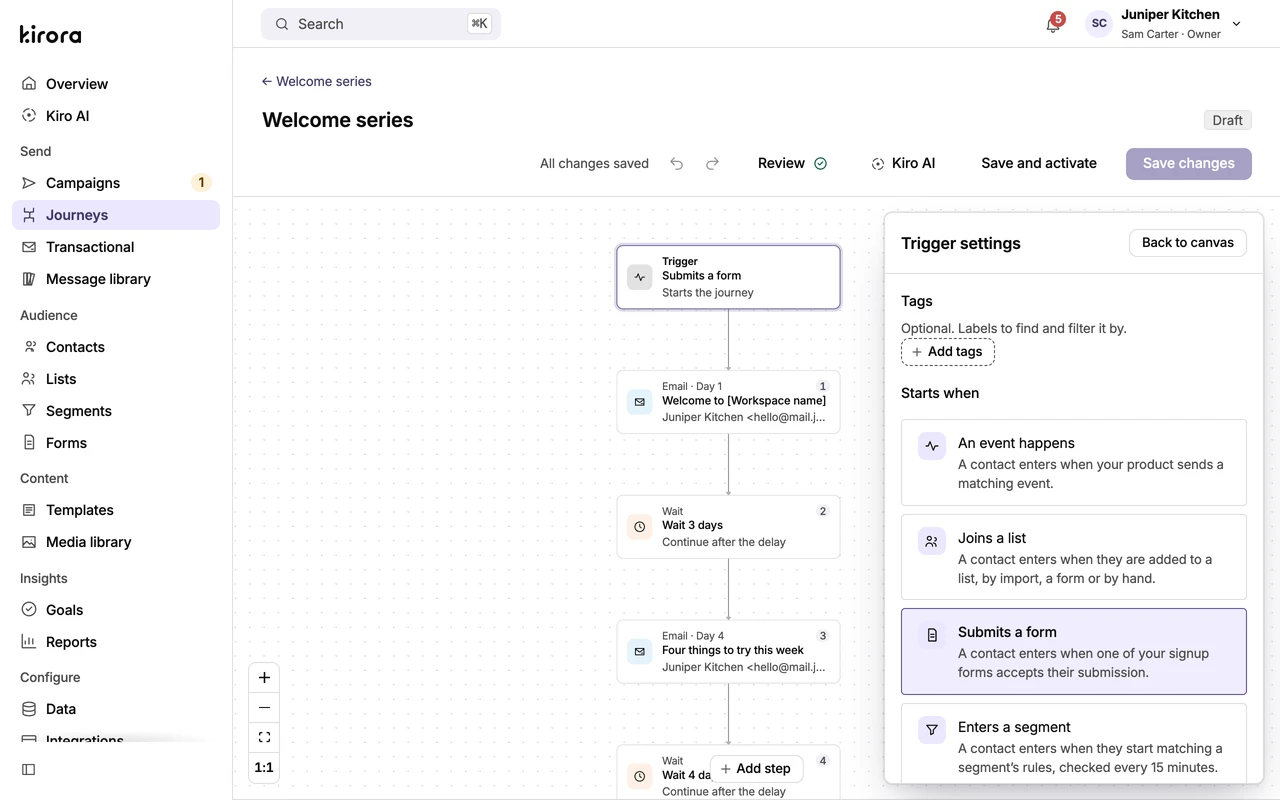
Connect Typeform and every response with an email address lands in Kirora as a contact and a Form Submitted event. Answers become attributes you can segment on, and a journey can follow up while the form is still fresh. You paste one webhook URL into each form; nothing else changes in Typeform.
Before you start
- Maintained by: Kirora.
- Availability: built into Kirora, with nothing to install.
- Direction: into Kirora, from Typeform. Kirora writes nothing to Typeform.
- You need: a Typeform plan with webhooks (PRO or above), and access to the forms you want to connect. In Kirora, you need the owner, admin or developer role. For plans, see Which plans include it?
What it does
| In Typeform | In Kirora |
|---|---|
| A response with an email answer | Form Submitted on that contact, with provider, form_id, form_name, response_id and answers |
| Other answers, including hidden fields | Contact attributes named after the question, such as company_size |
| Choices | Text; a single choice is one value |
- Kirora takes the email from an email question, or from a question labelled “email”.
- Answers only fill in details a contact doesn’t have yet. They never overwrite what Kirora already knows, since anyone can type any address into a public form.
- Kirora keeps up to 40 answers per form as contact attributes, each named from its question in at most 40 characters.
Contacts and consent
- Matching: by the email address in the response.
- New contacts are added without marketing consent. Transactional email can reach them; your marketing email waits until they agree to it.
- Consent question: under Settings on Integrations › Typeform, enter your form’s consent question exactly as the form shows it. It must be a legal or yes/no question. A yes grants email consent, with the form and the question kept as proof. This doesn’t apply to contacts known to be in Germany, Austria or Norway, where email consent needs a confirmed sign-up: use a Kirora form for them. Someone who has since unsubscribed is never signed back up by an old response.
Connect Typeform
- In Kirora, go to Integrations › Typeform and choose Make the webhook URL.
- In Typeform, open your form and go to Connect › Webhooks › Add a webhook.
- Paste the webhook URL and save it. Open the webhook’s settings, paste the signing secret and save your changes.
- Turn on the webhook. Repeat for each form.
Test it
- Submit your form once with an email address of your own.
- In Kirora, Integrations › Typeform shows when the first response arrives, then lists responses under Activity.
- Open that contact: their Timeline shows the Form Submitted event, and their answers are on the profile.
Limitations
- Responses without an email address are skipped.
- Responses sent before you connected aren’t imported.
- Answers never overwrite a contact’s existing details.
Get help
If responses stop arriving, Integrations › Typeform shows the last error. Check that the webhook is still turned on in Typeform and that its signing secret matches the one in Kirora. For anything else, contact us.
Questions
Which plans include it?
Available on Starter and above. On the Free plan, connecting Typeform requires an upgrade first.
How do I disconnect?
On Integrations › Typeform, choose Disconnect. The webhook URL stops working, so new responses won’t arrive. Contacts and events already in Kirora stay.
Next steps
- Connect an integration: the step-by-step guide in the docs.
- Journeys: follow up on every response.
- Consent and unsubscribes: how Kirora records who agreed to what.