Verify a domain you own before sending campaign, journey or transactional email. Add the domain, publish the DNS records Kirora provides and wait for verification. Kirora reviews each new domain before it sends. Authentication helps receiving mail servers check that your sends are authorised.
Before you start
You’ll need:
- A domain you own, such as
juniperkitchen.com. If you don’t have one yet, buy one from any domain registrar. - Access to its DNS settings, or the name of whoever manages them, such as your web agency or IT team. You’ll add a few records there; nothing on your website changes.
- The owner, admin or developer role in Kirora.
Choose a domain
Use a domain whose DNS settings you can change. We recommend a subdomain such as mail.juniperkitchen.com, which keeps your email’s reputation separate from your main domain.
You can’t use:
- a free email domain such as gmail.com, yahoo.com, outlook.com or icloud.com, or a subdomain of one
- a bare domain ending, such as co.uk or com.au
- an address managed by a website builder or store host, such as a myshopify.com or wixsite.com address
- a
www.address (use the domain withoutwww., or a subdomain such asmail.)
A domain can be verified in only one workspace at a time.
To see which SPF, DKIM, DMARC and MX records a domain already has, try the free domain checker.
Add the domain
- Open Settings, then Email sending under Messaging. This opens Sending domains.
- Choose Add domain.
- Enter the hostname only, without
https://, for examplemail.juniperkitchen.com. - Choose Add domain.
The domain’s page opens with the DNS records to publish.
Publish the DNS records
The domain’s page lists every record with its type, host and value. Add each one, exactly as shown, at the company that hosts your domain’s DNS (often where you bought the domain).
- DKIM record: signs your messages. It also proves you own the domain.
- MAIL FROM records: an MX record and an SPF record on a bounce subdomain, so bounces come back to you. Add one MX record at the MAIL FROM name, and don’t add a second SPF record at your root domain.
- DMARC record: needed before you can send marketing email. Gmail and Yahoo also require one from bulk senders. The record Kirora suggests only asks for reports, so it doesn’t change how your mail is delivered.
If your DNS host adds your domain to record names automatically, enter each name without it.
Find where your DNS is hosted
Your DNS is usually managed where you bought the domain. If you moved your website or email, it may be managed by your website host or a DNS service instead. To check, look up your domain in a WHOIS or DNS lookup tool: its name servers name the company, for example ns1.cloudflare.com or ns01.domaincontrol.com (GoDaddy).
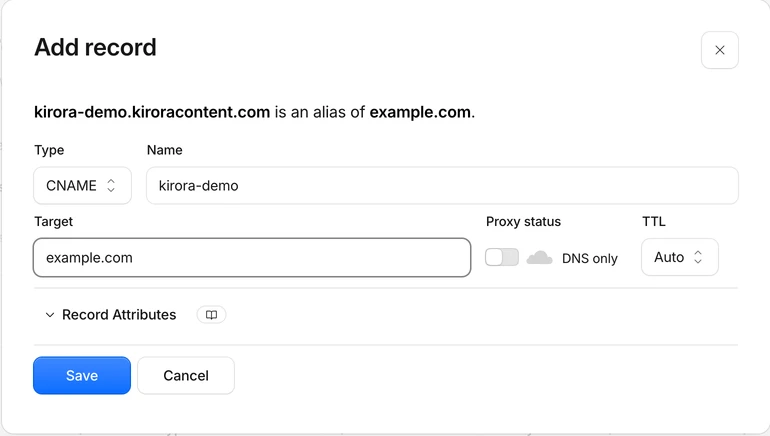
Sign in there and look for a page called DNS, DNS records, Zone editor or Advanced DNS. It lists your existing records and has a button to add one. For each record Kirora shows:
- Choose the record’s Type, such as
TXT,CNAMEorMX. - Paste the Host (some DNS hosts call it name). Most DNS hosts add your domain to it automatically; if yours asks for the whole name, use the Full name shown under it. Paste the Value (points to, target or content) exactly as shown.
- For the MX record, enter the Priority in its own field. If your DNS host has no priority field, Kirora shows what to enter instead.
- Leave the TTL at its default, and save.
On Cloudflare, set each record to DNS only (a grey cloud), not proxied.
Someone else manages your DNS? Use any of these:
- Copy all records, then paste them into a message.
- Download zone file, for DNS hosts that can import one.
- Share the DNS records, which creates a link to the records you can send to a teammate or your web agency. You can stop the link working at any time.
Verification
Once the records are published, the check usually takes seconds to minutes. We check every few minutes, and notify admins when the domain is verified. To check straight away, open the domain and choose Check verification.
Each record shows Confirmed, Not found or Wrong value. If a value is wrong, Kirora shows what it expected and what it found, so you can correct it.
The domain’s status tells you where it is:
| Status | What it means |
|---|---|
| Pending | Waiting for the records to be published. |
| Awaiting approval | The records prove the domain is yours, and it’s waiting for Kirora’s review. |
| Verified | Senders on this domain can send. If DMARC is missing, transactional email can send but marketing email waits for it. |
| Verification failed | The records couldn’t be verified. Review them, then check again. |
| Verification lost | A record has gone missing. Nothing sends from the domain until you publish it again. |
| Declined | Kirora declined sending from this domain. Its page gives the reason. |
| Held for review | Another account has already set up this domain, so nothing sends from it until Kirora support reviews it. Contact support. |
How Kirora reviews a domain
Kirora reviews each new domain before it sends. Once the DNS records prove a domain is yours, it shows Awaiting approval, and nothing sends from it until it’s approved, not even a test email. A subdomain of a domain the same workspace has approved is approved automatically.
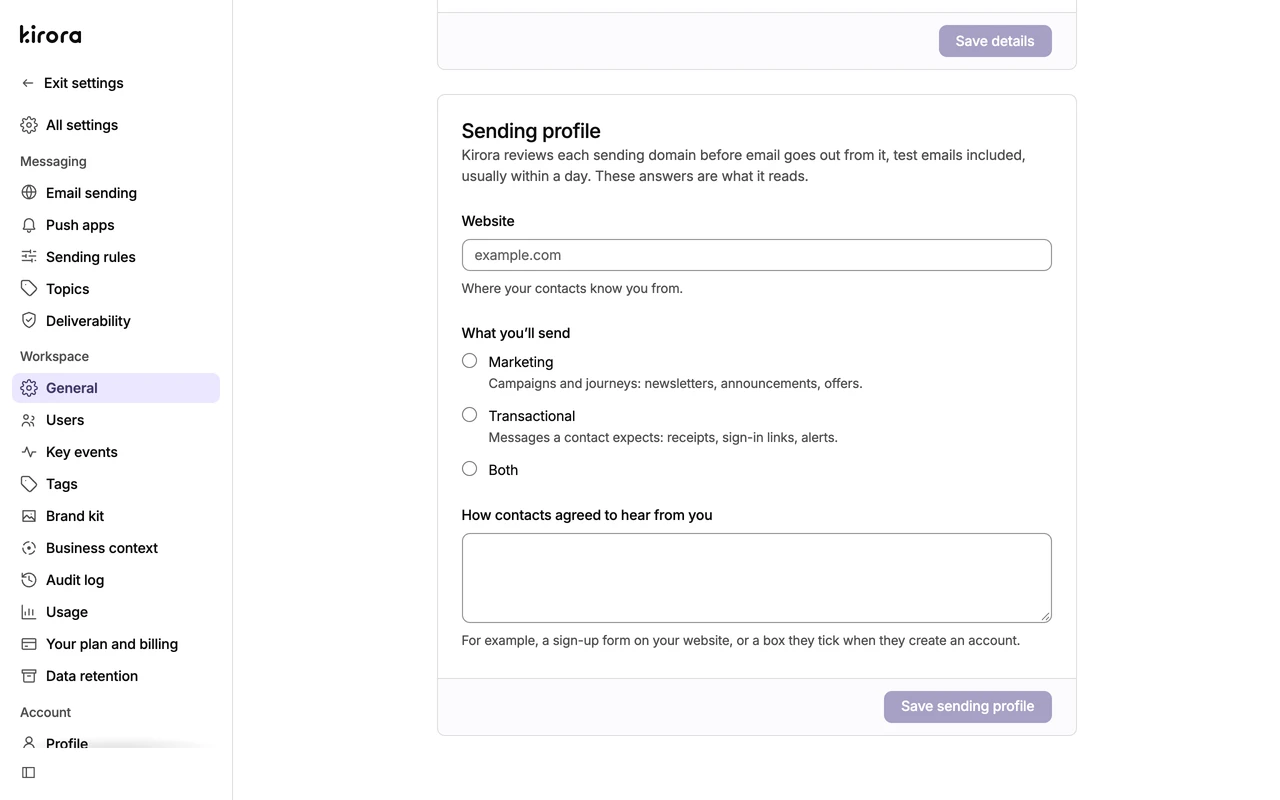
The review reads your workspace’s sending profile. An admin or the owner fills it in once, under Sending profile in Settings › Workspace › General:
- Website: where your contacts know you from.
- What you’ll send: Marketing, Transactional or Both.
- How contacts agreed to hear from you: for example, a sign-up form on your website, or a box they tick when they create an account.
A domain waits until the profile is filled in, and saving it puts every waiting domain up for review, so you can do this before or after adding a domain. Admins, developers and the owner are notified when a domain goes into review and when it’s approved or declined.
If a domain is declined, its page gives the reason, and nothing sends from it or from its subdomains in the workspace. A domain declined after it was set up stops sending. Change what the reason names, such as your sending profile, then an admin, a developer or the owner opens the domain and chooses Ask again.
Show your logo with BIMI
BIMI is optional: it lets mailbox providers show your logo beside your emails. Once the domain is set up, its Checks include a BIMI row, tagged Optional, that shows Logo record found, No logo record or Unknown (the record couldn’t be read).
- Publish a BIMI record at
default._bimion your domain, pointing to your logo as an SVG Tiny PS file. - Set your DMARC policy to quarantine or reject. The logo shows only once DMARC is set to one of them.
- For Gmail and Apple Mail, also get a mark certificate (VMC or CMC). Yahoo shows the logo without one.
What you can do while you wait
You don’t have to wait for verification or review to get started. While the domain is checked and reviewed, you can:
- import contacts and build lists and segments
- design emails and draft campaigns and journeys
- preview emails as a contact (test emails wait for verification, because they come from your own domain)
- set up and send push notifications, which don’t need a domain
Campaigns and journeys can’t send email until the domain is verified.
Remove a domain
Open the domain, open its actions menu and choose Delete domain. The dialog lists what still sends from it: the workspace’s default sender, Campaigns not yet sent, Journeys and Templates.
Kirora won’t delete a domain that’s still in use, and says It wasn’t deleted: it’s still in use. Make another domain’s sender the default in Settings › Messaging › Sending rules, change the sender on each campaign, journey and template listed, then delete the domain. Nothing can send from it afterwards until you add and verify it again.