A subscription payment fails. The customer needs to know what happened and how to pay. Then another attempt fails, a second bill becomes due, or the customer settles up elsewhere. Your follow-up needs to keep up.
Chasing a settled bill is a fine way to make an awkward moment worse. Build reminders around each bill, with clear rules for starting, waiting and stopping.
Screenshots show a demo workspace with sample data.
Build a Stripe failed payment email sequence around the bill
A failed payment email explains what happened and gives the customer a way to pay. Follow-ups are often called dunning emails. Before sending one, you need to know whether the bill still needs attention.
Stripe sends invoice.payment_failed for each failed attempt and can redeliver an event. Treat every arrival as a reason to send, and one unpaid bill can trigger repeated reminders.
One customer can also owe two bills. Paying one should stop its reminders while leaving the other bill's follow-up running. A customer-level “has paid” check cannot make that distinction.
Take Tallyfox, a fictional project-planning app using Kirora to follow up on failed subscription payments. Each reminder needs to stay attached to the bill that started it.
What good payment reminders look like
Customers should know which payment needs attention and how to resolve it. Your automation should recognise repeat failures and stop when the matching bill is paid or closed.
In Kirora, the Failed payment journey template provides those rules:
Each
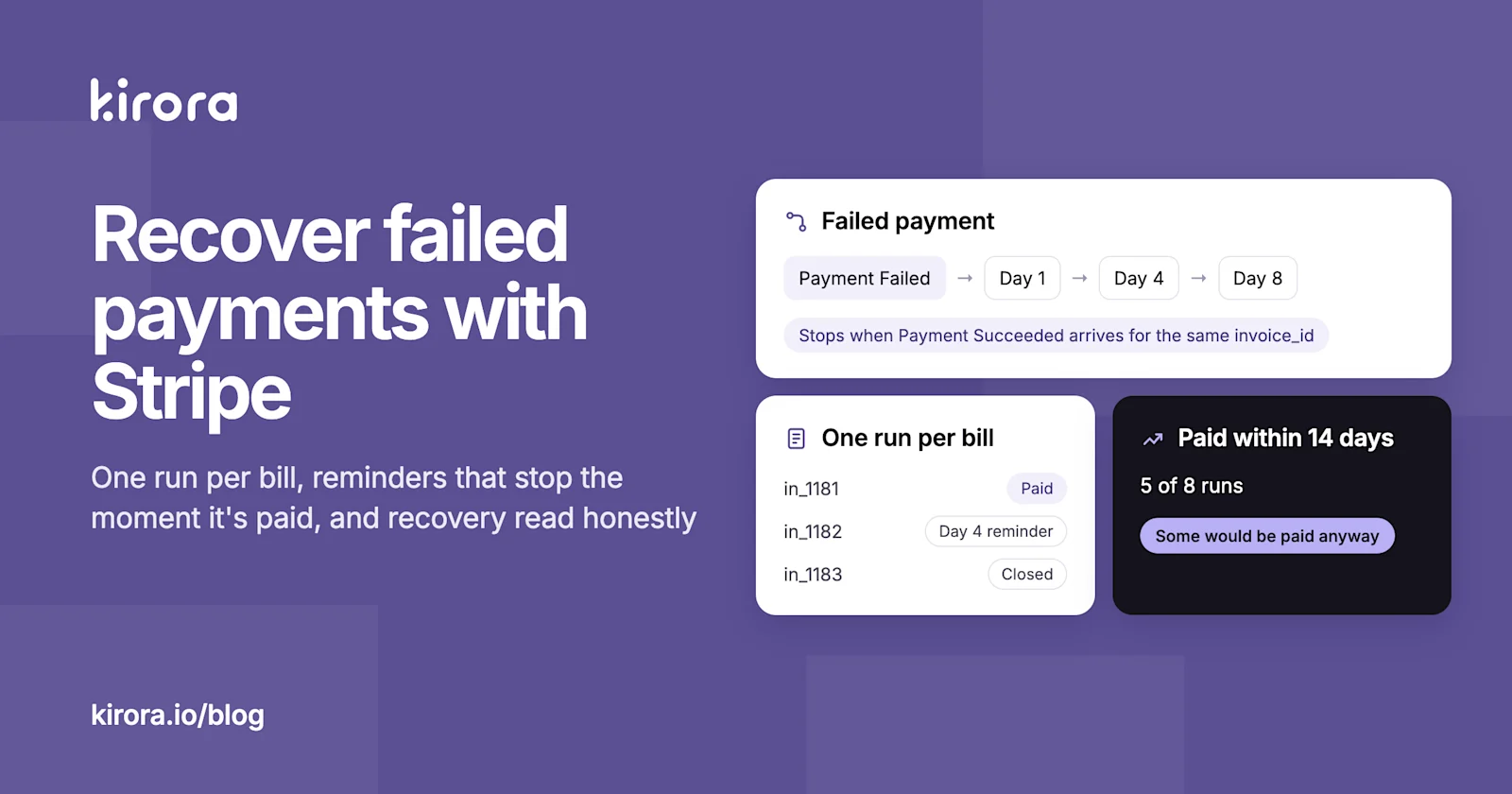
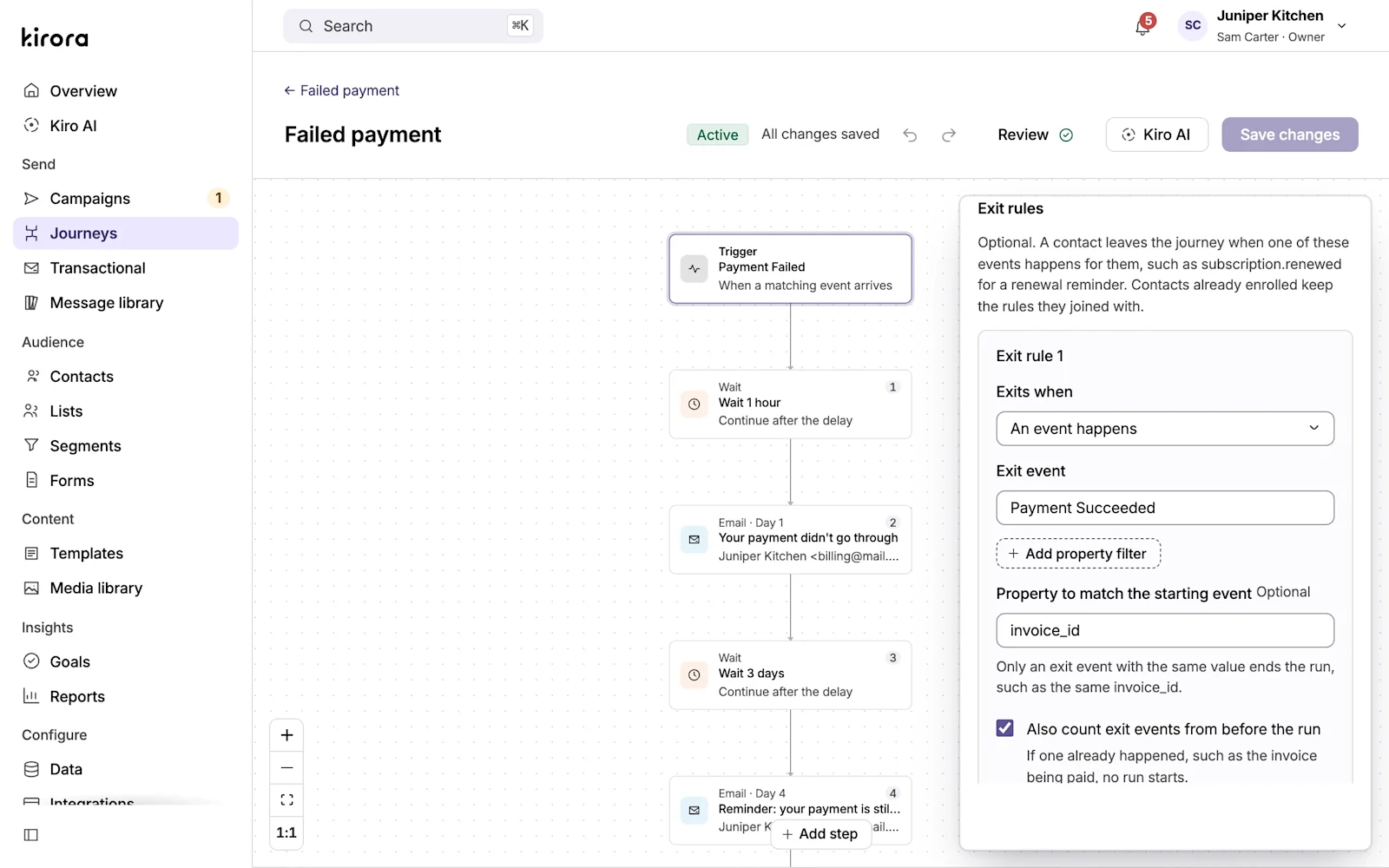
invoice_idgets one run. Another failure for the same bill starts nothing new.Payment SucceededorInvoice Closedends the run for the matching bill.A contact receives at most one reminder a day, even when several bills have failed. A later reminder waits rather than being dropped.
The messages stay about the payment and run as service messages.
Get those rules right before polishing subject lines. A beautifully written reminder for a settled invoice is still the wrong reminder.
Step 1: Connect Stripe and check the connection
In Kirora, open Integrations › Stripe and paste a secret key or a restricted key. A restricted key needs Charges: Read, Customers: Read and Webhook Endpoints: Write permissions. Workspace admins and developers can make the connection.
Kirora registers its own webhook, so there is no webhook URL to copy into Stripe.
Use Check connection to confirm the key and webhook. With a test key, this makes a 1.00 USD test payment that arrives as a real webhook. Check the journey's start and exit rules separately before switching it on.
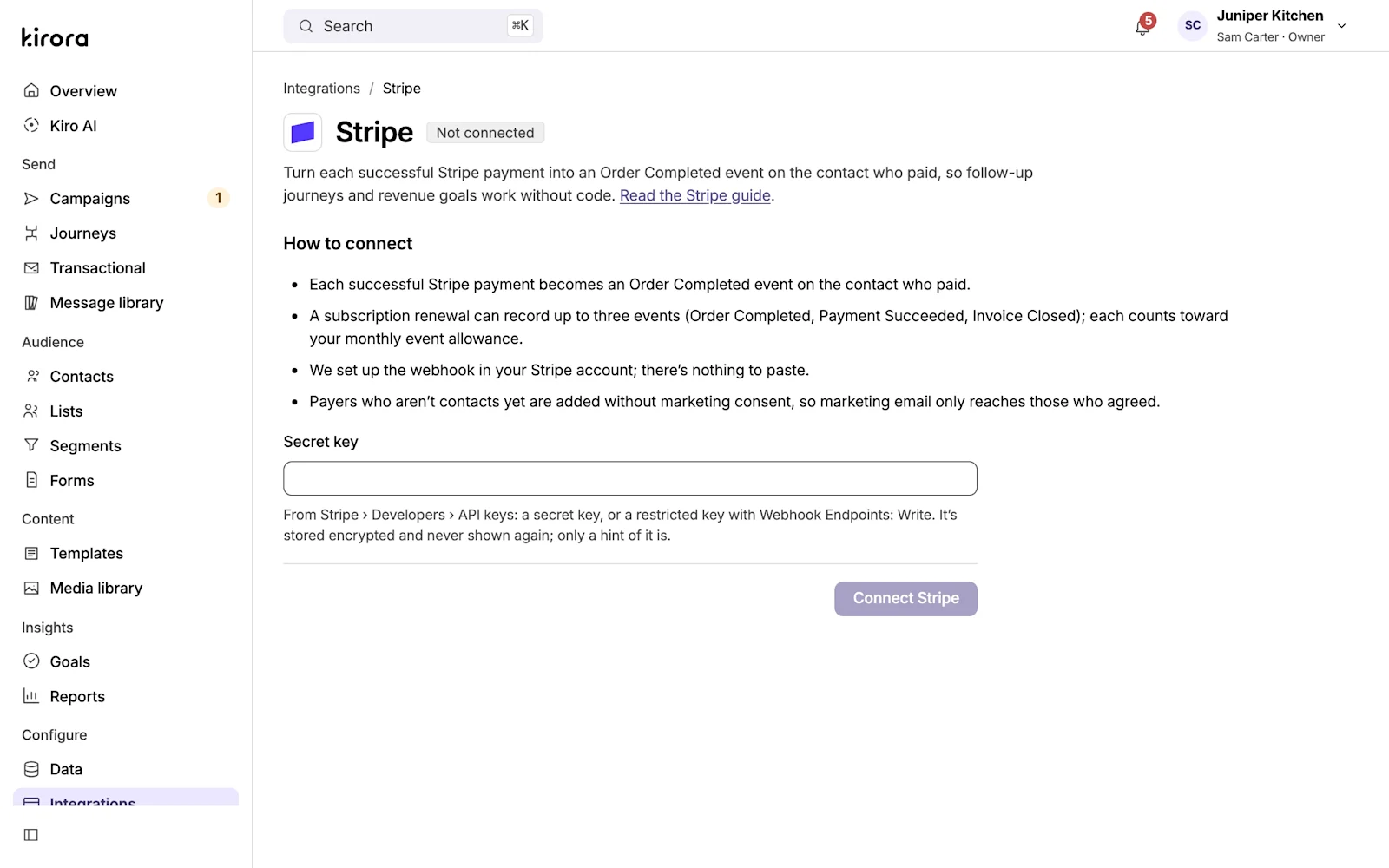
Stripe events become Kirora events on the contact with the same email address. If that contact is new, Kirora creates it without marketing consent. A billing event is not permission to send a newsletter.
Step 2: Understand which events start and stop reminders
The Stripe integration translates billing events into the events your journey uses:
Stripe event | Kirora event | What it tells the journey |
|---|---|---|
|
| An attempt failed; includes |
|
| Payment succeeded; includes |
|
| The bill has closed; includes a |
The payment_url is Stripe's hosted invoice page. Each Stripe event counts once in Kirora, however often Stripe redelivers it. A new failed attempt is a separate event, but it does not start another run for the same bill in the Failed payment template.
Invoice Closed also covers invoices marked paid outside Stripe, so reminders stop even when payment is settled elsewhere.
If you use another billing system, send Payment Failed with an invoice_id, then Payment Succeeded or Invoice Closed with that same identifier. It can identify an invoice, a repayment or an instalment. The matching identifier tells the journey which run to end.
Step 3: Start one journey per unpaid bill
Choose the dashboard's Failed payment journey template. It starts on Payment Failed, with a billing_reason condition that excludes subscription_create, the first payment at signup. That customer is still at checkout.
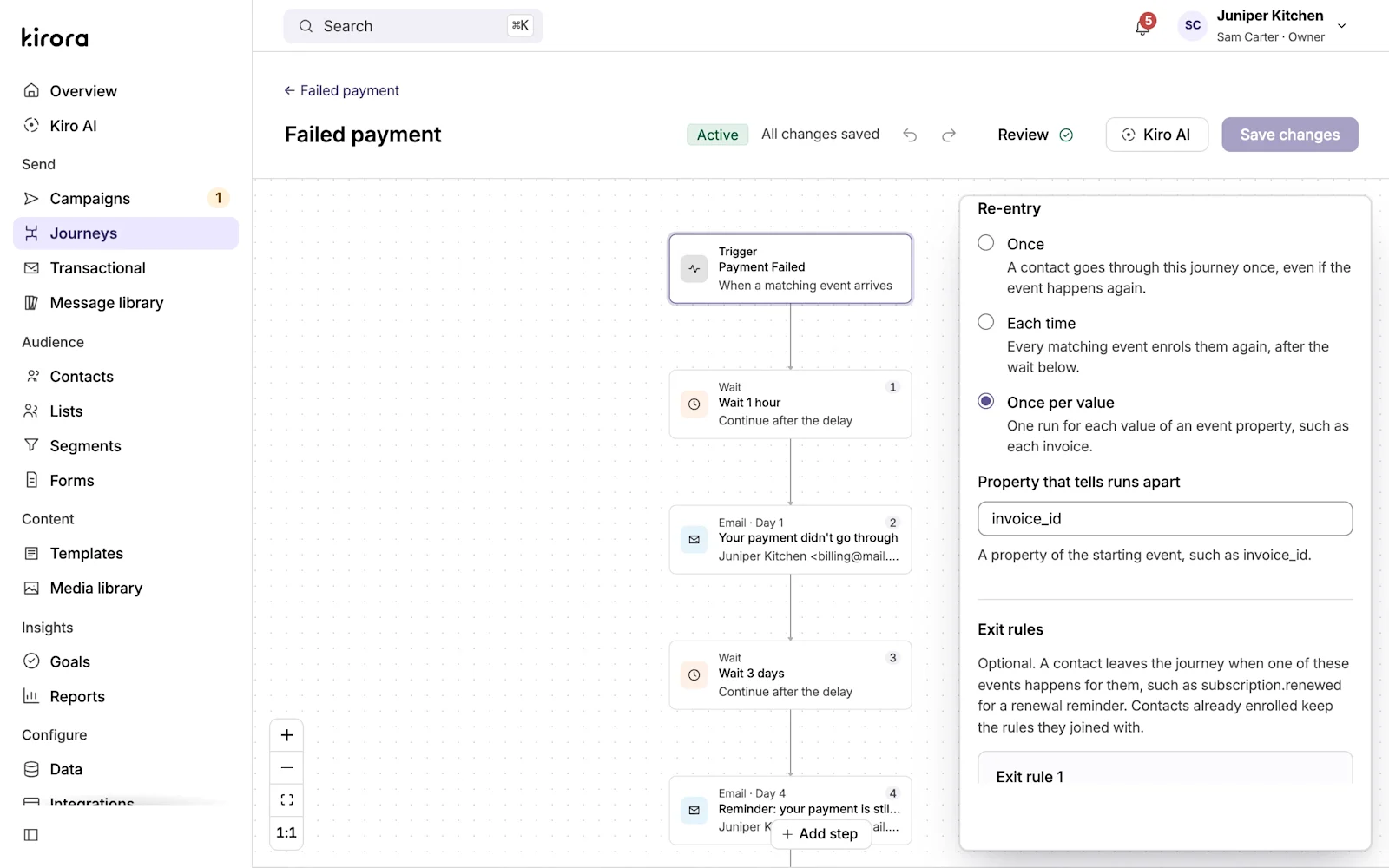
The template runs once per invoice_id: its re-entry is set to Once per value, with invoice_id as the property that tells runs apart. If a Tallyfox customer has two unpaid bills, each gets its own run. Another failed attempt on the first bill leaves its existing run in place.
The customer's email address identifies the person; invoice_id keeps their bills apart.
Step 4: Give the payment time to catch up
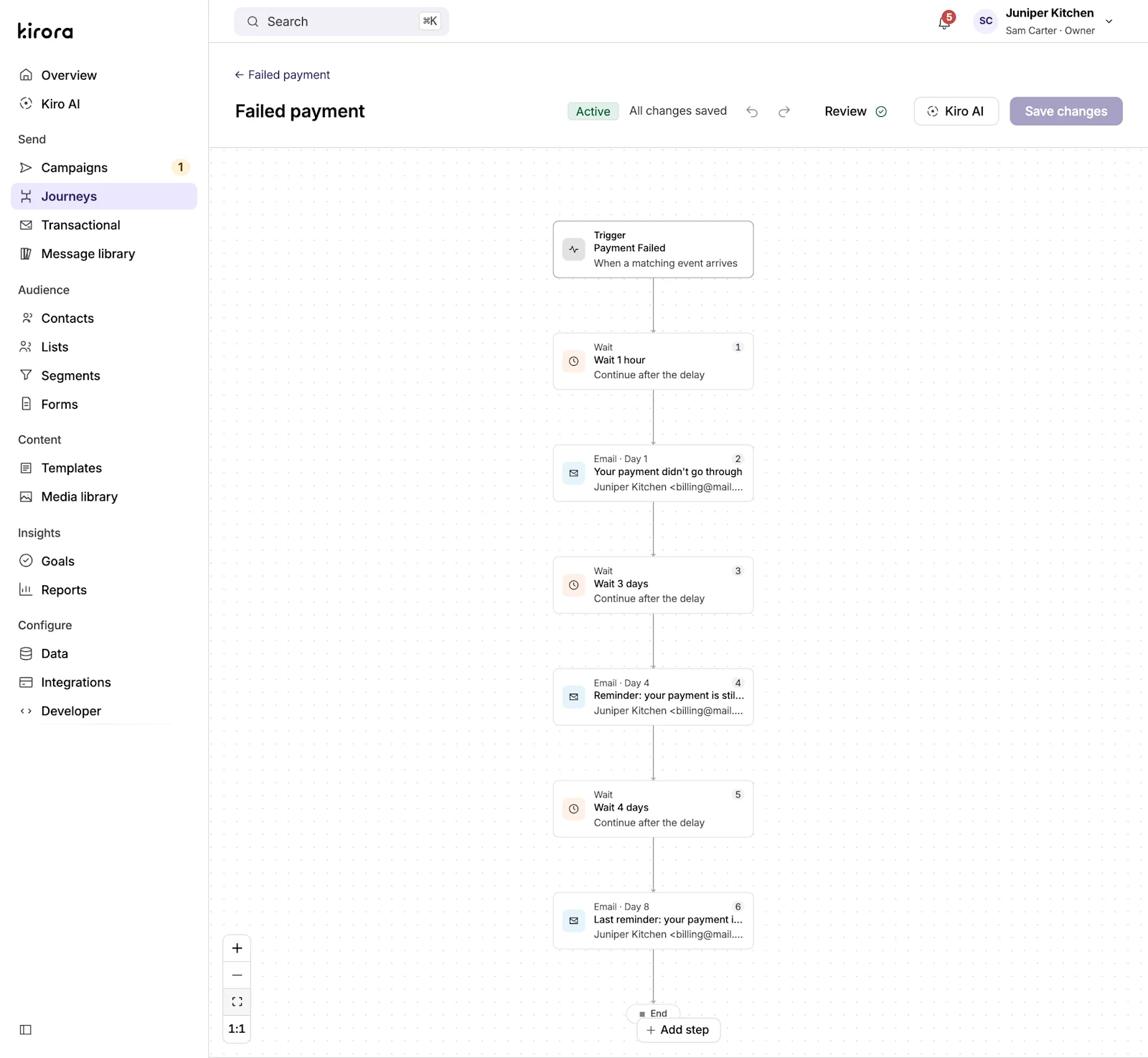
The template waits an hour before the first reminder, leaving room for a payment arriving just after the failure. It then follows this schedule:
Wait | Reminder subject |
|---|---|
1 hour after entry | Your payment didn't go through |
3 days after the first reminder | Reminder: your payment is still due |
4 days after the second reminder | Last reminder: your payment is still due |
The daily limit applies across bills. If Tallyfox's customer has two reminders due on the same day, the later one waits; it is not dropped.
Keep the copy direct: explain that the payment needs attention and link to the bill. Later reminders can repeat the action. Avoid threats or deadlines your billing process does not support.
For example, Tallyfox's first message could say: “Your payment to Tallyfox didn't go through. Open your invoice to review the payment and settle the bill.” A button labelled “View your invoice” gives the customer a clear next step.
Step 5: Check the payment destination and message purpose
Each reminder button uses the event's payment_url. If there is none, it uses your billing page. Replace https://example.com/billing with your own destination before using the journey.
Check all three buttons, including the fallback. An example address will not help anyone settle a bill.
These reminders are sent as service, or transactional, messages without marketing consent. Keep the content about the payment. An offer or a win-back message belongs in a separate marketing journey.
Tallyfox's reminder should help the customer settle an invoice. A subscription promotion can wait. A billing problem is already enough to deal with.
Choose which system sends failed-payment emails. Stripe can send them too, so turn those off in Stripe or leave this Kirora journey off. Customers need one sequence.
Step 6: Check that reminders stop for the right invoice
The template exits when Payment Succeeded or Invoice Closed arrives with the same invoice_id. It also recognises a matching success or closure recorded just before the failure arrived.
Review these cases against the journey's rules:
The same Stripe failure event arrives again: it counts once.
Another attempt fails for the same bill: it does not start another run.
One of two unpaid bills is paid: its run ends; the other bill keeps its own run.
A bill is voided or marked uncollectible:
Invoice Closedends its reminders.A matching payment or closure is recorded just before the failure: the journey recognises it.
Check the invoice match in each case. The journey must stop chasing a settled bill while keeping reminders for any other unpaid bill running.
Step 7: Read recovery figures honestly
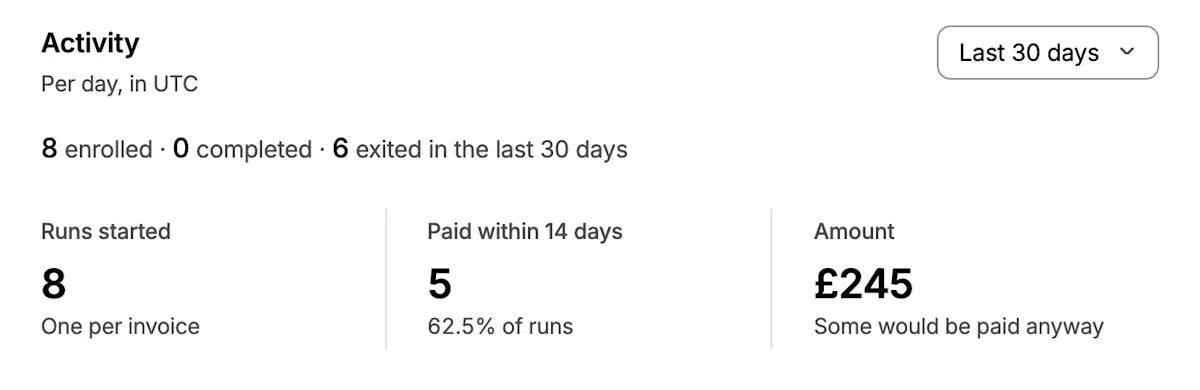
The journey's Performance tab shows Runs started (one per invoice), Paid within 14 days and Amount, for each currency. Read each currency on its own rather than adding them up.
Recovery during a journey does not prove the reminders caused it, and the dashboard says as much: Some would be paid anyway. Stripe's own retries recover some payments regardless.
A bill closed through Invoice Closed ends its reminders but is not counted as recovered, including when it is marked paid outside Stripe.
Mistakes to catch before switching on
Starting again after every failed attempt. Keep one run per
invoice_id; a retry failure should not reset the customer's reminder sequence.Stopping at the contact level. Match the payment or closure to the bill. One paid invoice can sit alongside another unpaid one.
Leaving both senders active. Choose Stripe's failed-payment emails or the Kirora journey before customers receive overlapping reminders.
Mixing payment requests with promotions. Keep service messages about the bill and put offers in a separate marketing journey.
Claiming all recovered money as an automation win. Report the journey's 14-day recovery figures with their limits. Stripe's retries can recover payments during the sequence too.
Explore: Failed-payment recipe · Stripe guide · Stripe integration · Retention workflows · Automated journeys
Start recovering failed payments.Connect Stripe